Showing posts with label windows 7. Show all posts

Top 10 tricks for Windows 7

Top 10 tricks for Windows 7

Windows 7 has become the fastest selling operating system in history, ahead of Windows XP. The system is already present in more than half of the world's computers. Microsoft has announced that its sales reach the not inconsiderable figure of 630 million copies sold. Without doubt, this is a fairly complete and stable, which also has a huge amount of tricks that can help improve the use and performance. Here is a list of the top 10 tricks for Windows 7.
Anclar la unidad a la barra de tareas

1. How to create a shortcut to a folder or external drive
Cómo anclar una unidad a la barra de tareas

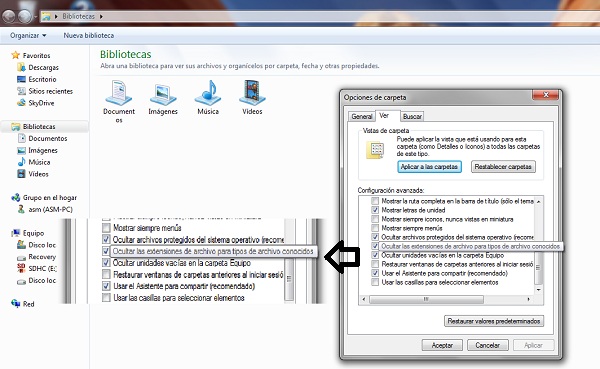
The taskbar is a very useful tool to access the programs you use and even to anchor some file that we use often, such as a text document or presentation. However, not so easy to pin a shortcut to a drive or folder. To perform this trick, the first thing to check is that when displaying filenames Windows also displays extensions thereof.

To do this, we go to Windows Explorer and click on the "Organize". Then on "Folder and Search Options" and in the list of options look for the next "Hide file extensions for known file types." Should we remove is checked.

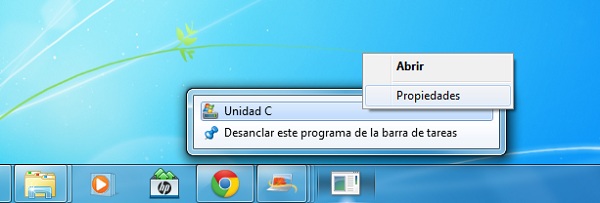
Now we can perform this trick. Anywhere on the screen we click the right mouse button, select the "New" and then "Text Document". We changed the name to one that we want, with care to always add the ". Exe" to the filename. Once done, drag the icon for this new document and had the desktop to the taskbar. The first step is to change the icon to one more attractive than the one in the picture. To do this, we press the right mouse button on the icon, then again right click the file name and properties (appear similar to the image).

In the Shortcut tab click on "Change Icon" and choose the desired image. After twice and accept if the step has run see how you change the icon. Now we return to do the same steps to get to the properties and the shortcut tab change the addresses of "Target" and "Start in" with the letter of the drive or folder path followed by a colon and the bar side. Like, for example, "C: \" or "C: \ My Documents". Then we can delete the file we created on the desktop, and we will have our unit anchored to the taskbar.

2. Discover the secrets of the calculator
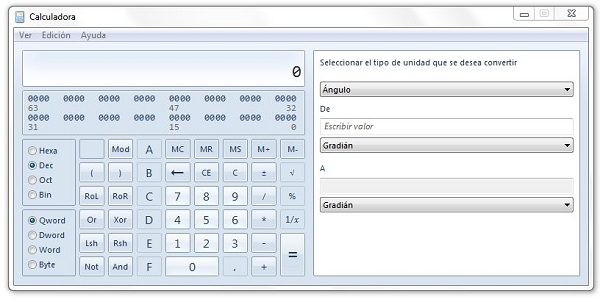
Explora la calculadora en Windows 7

At first glance it may seem that Microsoft has repeated the calculator functions available to it Windows Vista. However, behind the design of the basic view of this tool are hidden advanced multiple views including interesting features. If you click on "View", we can set the desired view. On the left the view of the calculator "traditional" (which may be basic, scientific, programmer and statistics) and to the right a view of unit conversion, date calculations and spreadsheets among which includes a mortgage calculator.

In short, a set of functions that go beyond what is expected of a traditional calculator and waiting to be discovered.

3. Photos rotate on desktop
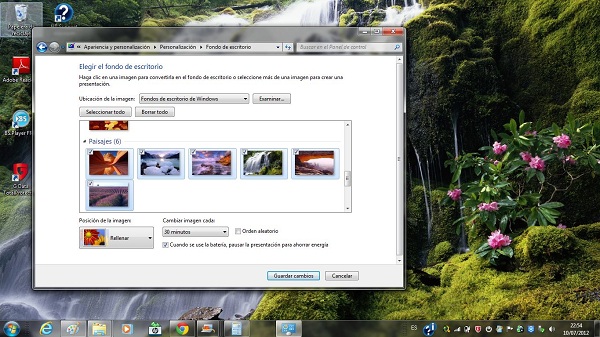
Presentación de imágenes en el escritorio

Windows 7 has built a series of background images that the company has grouped by themes such as landscapes or architecture. These images are designed to fit the right way to our screen resolution, and the process of establishing one of these pictures as wallpaper is easy. But after a while can become tedious seeing the same background. To prevent this from happening, Windows 7 introduces the ability to customize a slideshow.

To do this, we click on the button right on the desktop, then "customize" and click on the option to "wallpaper" on the bottom. We can choose different image collections default Windows 7 (if you click on the name is automatically selected all the images in the collection). Or choose a folder with our own tightening images on "Browse". If we choose only some pictures some use the Control key and then we click on the desired images.

4. How to organize your notes in the form of Post-It
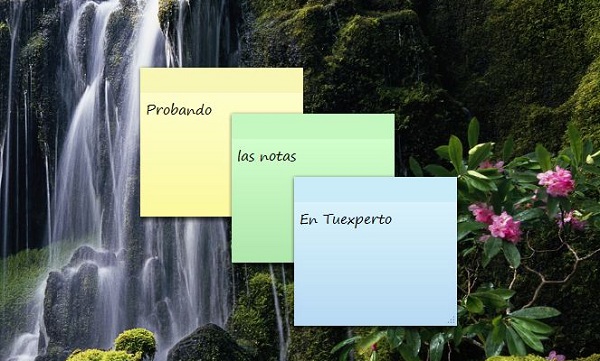
Notas rápidas en Windows 7

There are many occasions when it is necessary to point out some data that we want to remember or keep on hand. Typically in these cases is to use Notepad or Word itself. However, there is a simple and visual that can help in this regard. This is the application "sticky note" with which data can point several small notes in the form of Post-It.

To use this tool simply go to Start Menu "All Programs" "Accessories" Quick Notes. Simply select on the note and start typing. The color of each note changes if we click on it with the right mouse button and then the desired color. If you want to write a new note we press on cross-shaped symbol, and to remove the X. If we exit the program by right clicking the icon on the taskbar of the notes and "Close window" the notes are saved until you return to open them.

5. Extend the hours of your laptop battery
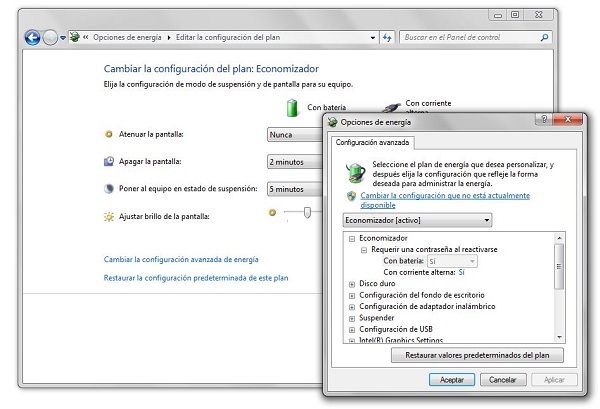
Cómo alargar la vida de tu batería

Windows 7 includes a series of advanced energy options that can help improve the life of the battery of a laptop. Default Windows offers two options: the "saver plan" and "performance plan". To change the configuration of the plans or create a new one, go to the Start menu and type "power options". We choose one of the plans (or create a new one) and then you click on "Change plan settings".

In the next window to push back on "Change advanced power settings." Through the window (shown in the picture above) we can change the way the system behaves as disk devices or ports USB, plus video presentations or desktop wallpaper. In this case, it is important not to touch values ​​that do not know well.

6. Discover and ends the program that chokes your computer
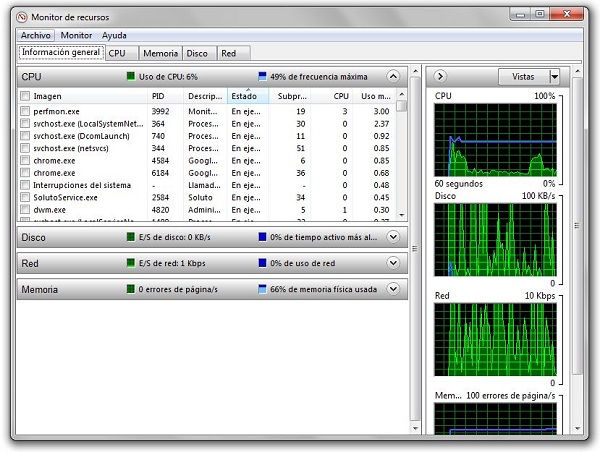
Monitor de recursos

Normally when searching for processes that are active and consuming more resources we use the task manager. However, Windows 7 has an application called "Resource Monitor" for managing these processes more advanced. To start go to the Windows startup and you type in the shortcut bar "resmon". Once inside, we manage various system resources and see values ​​such as CPU usage, the description of the processes or the use of the disk takes place. By pressing the right mouse button on one of the processes we can finish it or put it in suspension, in case you are consuming many computer resources.

Just do not forget that this is an advanced tool that can be dangerous and manage system processes that do not know.

7. Tired of Windows 7 alerts?
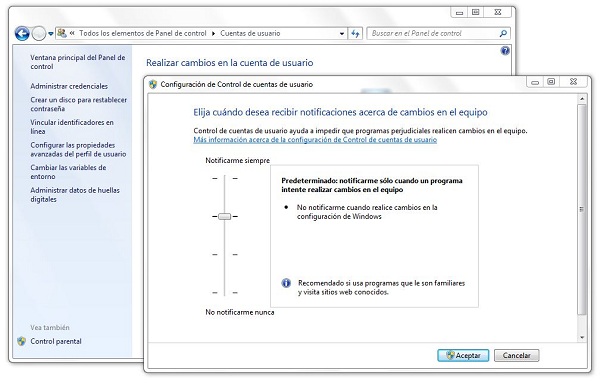
Cómo gestionar las alertas de Windows 7

One aspect that may be heavier when working with Windows 7 are throwing alerts the system when you open a program. Fortunately, we can manage alert levels and reduce the number of these notices through the Windows control panel. To access this menu, we can do this in two ways. The fastest is to go to start menu and type in the search bar "audit". The first option that appears is the "Change Settings of User Account Control."

If we use the more traditional way, go to control panel, look through the options (we recommend using the large icon view or small) and then "User Accounts". Once inside we click on "Change Settings Control user accounts. "There are five levels, from one that does not throw ever notices (many users will be tempted to turn this level) to notify whenever a program tries to install on your computer or any change in the configuration of Windows 7.

8. Take advantage of free tools such as WordPad
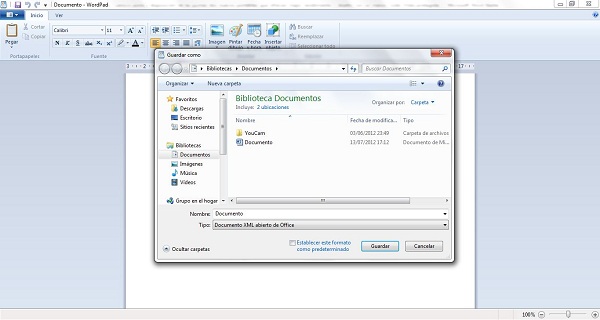
Utilizar las opciones de guardado de Wordpad

If you do not want to checkout for payment using the Office suite, there are several alternatives. One is the free tool WordPad that comes with Windows itself. It may be more than enough for current needs when open and write documents. One of the novelties of this version of Windows 7 is the ability to save documents in more formats than the typical RTF. In WordPad can open and create Office documents (in. Docx). To save files in this format, we just have to go to menu "save as" then choose "Office Open XML Document".

Incidentally, for those users who do not want to pay for Office also very useful free tools on the Internet. Microsoft itself offers Office Web Apps . And Google makes competition for some time with Google Docs . A suite that works over the Internet and increasingly incorporates more options.

9. Extends the multimedia capabilities of Windows 7
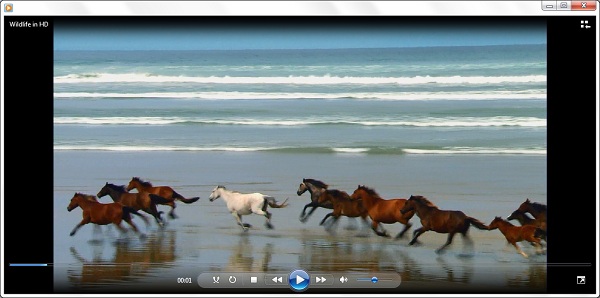
Explora las opciones multimedia

Although the version of Windows 7 includes a media player called Windows Media Player that improves the performance of previous versions, you can still have problems when playing some video or audio files. In order to improve the performance of Windows 7, the best thing to do is download a player that incorporates the necessary codecs to play most media files circulating on the Internet. Some of the recommendations that Free can offer better performance are the VLC Media Player or the K-Lite Codec Pack .

10. Enables full control mode
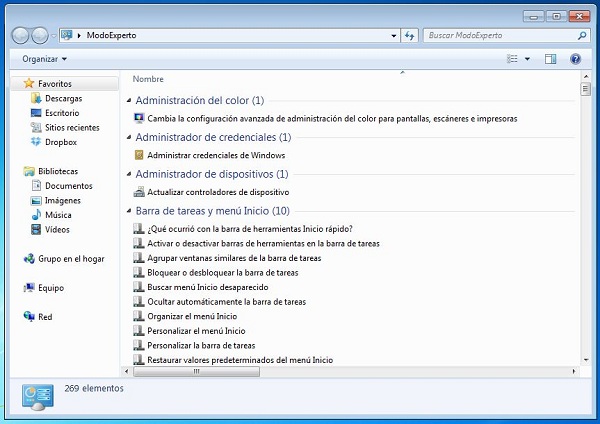
Modo experto

Windows 7 has a neat trick that allows you to organize all the configuration options in a single folder. The expert mode or Full Control is to create a folder in the directory you want with the following name: expert mode. {-8E54-465E ED7BA470-825C-99712043E01C}. In fact, the "expert mode" principle can be changed by any desired name, provided that mantegamos the second part of the name with the whole string of numbers and letters.

Then we can anchor this folder to the Start menu by simply dragging the folder icon and place it on the Windows Start button. Through this folder you can access all configuration options of Windows 7, which is organized through a list. Of course, we must take into account that change some Windows settings without knowing them can be dangerous.

If you want to support our job please visit our links, we have a lot of offers for you, if not you can also visit our top 10
Windows 7 vs Windows 8, head to head comparison, Which one is better?

Windows 7 vs Windows 8, head to head comparison, Which one is better?

Although still a bit early to talk about the performance of Windows 8, considering that there are still months and then comes the final version, the output of the previous version of this system can get a general idea of this platform to hit the market to pick up the control of Windows 7. 

The legacy of the fastest-selling operating system of Microsoft's history is a challenge of paramount importance, and Windows 8 has already presented some arguments p ara to convince the public. We present a first comparison between the two systems in its main aspects.

Windows 8 from Windows 7
Interface.

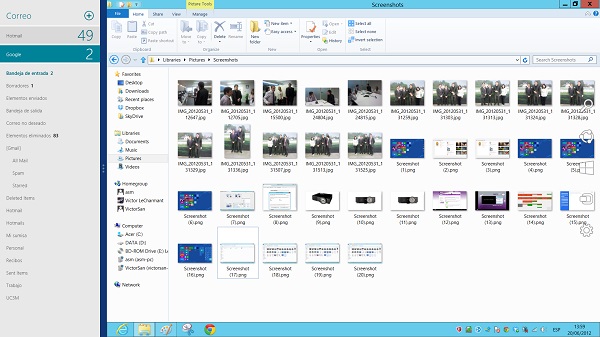
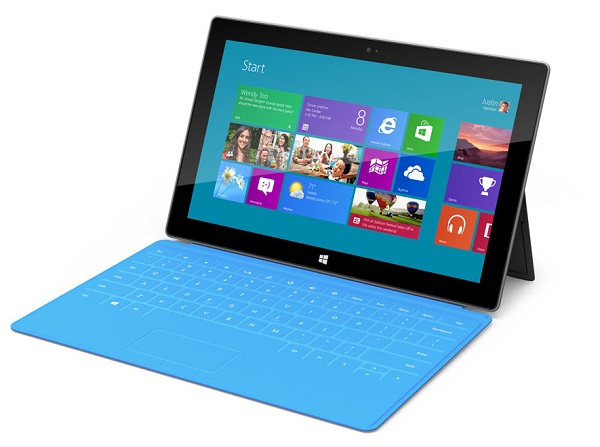
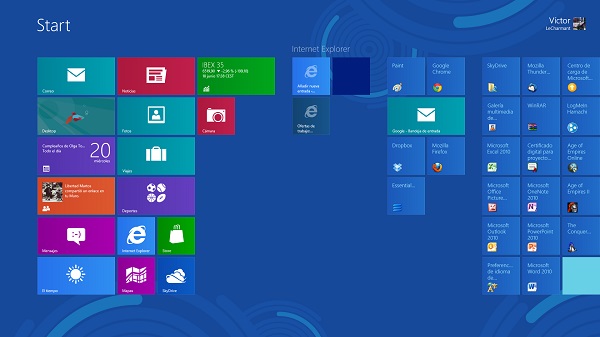
This is the main change that we have to face when opting for Windows 8 . The system would be a break with what we have seen so far on Windows, its main focus away from the desktop. Metro interface (you can see in the picture above) divides the various applications and system shortcuts in blocks that are distributed the screen. This is an inspired interface on Windows Phone and is designed to meet touch-enabled devices (although its use with the mouse is rather light).

The main advantages of this interface is that the main elements of the system have a high visibility (blocks also serve as alerts to show things like the mail received or developments in social networks). Specifically, users who often use Facebook or Twitter will surely be the most valued the new interface, because its integration is really good.

Desk

Although Microsoft has taken a big step to shift the focus to an interface beyond the desktop environment we are used, the desktop pervivirá as an application within Metro. The interior of this application will be practically the same as we already know, except for one detail, however, can be decisive: it leaves the Windows start menu.

With this decision, Microsoft forces the user to gradually adopt the new primary interface if you want to have Windows 8, as the emptiness of this menu should be filled with the new way to navigate. The transition often be difficult (it was in my case) and even then they begin to find positive aspects would not recommend to users who will use almost exclusively to bet on the Windows desktop 8.

One way to remedy this lack is in the advanced command menu that appears when we press the right mouse button in the lower left corner. Through it you can reach the control panel or program uninstaller.
Windows 8 vs. Windows 7

Explorer

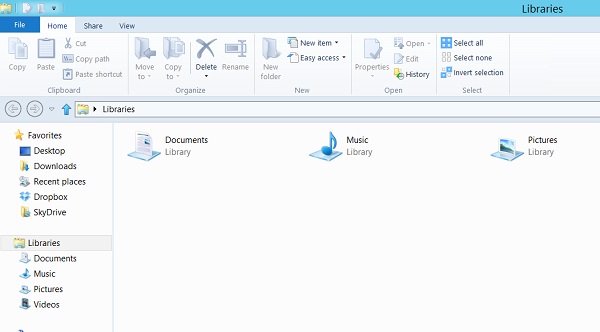
Under the new desktop Windows 8, another difference that we find will be the browser. Although the base is the same, at the top we find a toolbar similar to that joined Microsoft in the latest versions of its office tools Office. Ribbon bar, very visual and with large icons. Its use is fairly intuitive and icons are better distributed than in the case of Office. However, it is a matter of taste.

What we do is an interesting development is the management of file transfers. With Windows 8 can transfer multiple files or sets of different files from one window, and you can even control the priority of each transfer, pause transfers or see how fast they wear.
Windows 8 from Windows 7

Multitask


The base of multitasking in the two systems is similar. The easiest way is to manejarnos between applications press "Alt + Tab" and vary between different options. However, Windows 8 incorporates a lateral stripe on the left side of the screen (just keep the mouse in the upper right and then down down) which appear as thumbnails in the open applications. When we click on them are placed on the screen. If you routinely use a single application on the screen, this system is a breakthrough.

When it really makes sense is if we use the ability to split the screen for two applications to Windows 8 counts. The system allows us to place an application to "full screen" and the other in an elongated strip to the left or right of the screen. And in this case, you can drag the thumbnail on the left or right of our panel to place the application where we want and then play with the position of the applications. It is a very attractive option for users who often use many applications at once.

Speed ​​and System Requirements

Windows 8 improves startup speed you get with Windows 7, but in testing we have done this improvement does not become very large (we are waiting to perform the same test with a built-in SSD, because so far only was carried out with a hard drive). A great success that is behind Windows 8 is that the operating system works with the same requirements of the system that had Windows 7. However, we have received a comment from a reader telling us not able to install Windows 8 despite having Windows 7 because a "PC compatible", so it's likely that Microsoft has ventured too quick to announce this full compatibility.

Microsoft Surface
Versatility

The new system interface will bring manufacturers to work with devices of various kinds. The opening to the tactile world provide the creative efforts of the various brands, and we can go one step further in the field of integration. The first announced Windows 8 teams have joined the craze and quipos hybrids between tablets and laptops, the latest being Microsoft Surface , the first convertible tablet designed by Microsoft.

In short, it is premature to address some issues that require comparison between Windows 7 and Windows 8, such as the stability of the system or its overall performance. What do you think of the comparative and general Windows 8? Do you think there are some important aspect has been left untouched? 


If you want to support our job please visit our links, we have a lot of offers for you, if not you can also visit our links

Windows 8 versus Windows 7 diferencias

Windows 8 versus Windows 7 diferencias.


Después de asistir a la presentación de Windows 8 en el Build Windows 2011, es inevitable mezclar en una coctelera lo que hemos visto hoy junto a todo lo que se ha ido filtrando en estos últimos meses y coger este cóctel resultante y compararlo con su antecesor Windows 7. ¿Qué mejoras podemos encontrar en Windows 8 frente a Windows 7? Esta Windows Developer Preview Build 8102 que se ha presentado, lógicamente, sigue siendo una beta y no es para nada la presentación del producto definitivo (que llegará en un futuro con sus fanfarrias correspondientes) pero creo que deja clara las bases sobre las que Microsoft apoya esta nueva apuesta y evolución de sus sistemas operativos.

Windows 8
Creo que la integración de una tienda de aplicaciones es una de las joyas de la corona de este Windows 8. Si bien no es nuevo y es algo que está bien asentado en el sector de la movilidad y que Apple lanzó a principios de año para los Mac, la llegada de esta tienda viene a revolucionar la forma en la que los usuarios de Windows adquieren software y cómo se maneja el licenciamiento de éste. Las licencias se asocian a la cuenta de Windows Live, por tanto, todos nuestros equipos (en los que hayamos vinculado esa cuenta) pueden usar el software adquirido, algo así como una licencia por volumen donde nosotros somos “la empresa”. Desde el punto de vista de un usuario particular, creo que es un gran avance con respecto a Windows 7 donde la compra de software estaba más relacionada con la piratería (y la comprobación de licencias válidas) que otra cosa.
Windows 7

Otro de los aspectos que más me han atraído de Windows 8 es su acercamiento a la nube, algo que encaja a la perfección con la estrategia global de Microsoft, y que de verdad comenzamos a ver en su sistema operativo. El servicio de Windows Live tomará un papel importante en Windows 8 y, además de servir de llave a la tienda de aplicaciones, integra perfectamente servicios como SkyDrive (el almacenamiento en la nube) que también nos permitirá acceder en remoto a nuestro disco duro a través de este servicio. El uso de unidades de red no es nuevo en Windows, sin embargo, usar almacenamiento en modo cloud computing es un salto cuantitativo. Pero aquí no queda la cosa puesto que su orientación a cubrir aspectos relacionados con el mundo móvil hace que Windows 8 integre redes sociales (Flickr, Twitter, etc), algo que hasta ahora era impensable en la seriedad de un escritorio.
Precisamente el entorno de escritorio es otro salto, si bien el clásico escritorio (que Windows 7 había mejorado bastante) no se pierde y sigue ahí, un nuevo interfaz mucho más cercano al mundo móvil se propone como el interfaz por defecto. Un mosaico de widgets en los que ver lo que sucede (aplicaciones abiertas, feeds de noticias, etc) y que sube un nivel a los clásicos widgets del escritorio de Windows y les da una vuelta de tuerca.

La seguridad, y más a día de hoy, es un aspecto clave que no siempre se ha resuelto bien en los sistemas operativos de Microsoft. Hoy en día existen muchas utilidades que, mediante un Live-CD, nos permiten borrar las contraseñas de inicio de sesión de Windows o, bueno, acceder si conocemos las pautas que sigue alguien a la hora de poner una contraseña. Sea como fuere, salvo que se use un control biométrico, Windows 7 no llegaba a resolver este viejo problema; sin embargo, parece que Windows 8 toma la inspiración del mundo móvil e introduce un sistema de reconocimiento de gestos con el que hacer login en el sistema, algo podría contribuir a la seguridad de estos sistemas.

Recuerdo muy bien la primera vez que me senté delante de Word 2007, el interfaz había cambiado y me costó adaptarme al cambio. Salvo en Office, Microsoft no ha realizado unas variaciones significativas de su interfaz y el explorador de archivos lleva bastante tiempo manteniéndose constante. Sin embargo, de Windows 7 a Windows 8 nos vamos a encontrar un gran salto porque este menú, llamado Ribbon, se extenderá a todas las aplicaciones de Windows 8 (salvo el explorador). Esta es una gran diferencia frente a su antecesor y, seguramente, no vendrá exenta de polémica porque, seguramente, divida a los usuarios entre partidarios y detractores (en los que seguramente me incluya).

Windows 7, tanto desde una óptica profesional como personal, es un sistema operativo de escritorio multipropósito y en el que hablar de algo como la virtualización se queda bastante lejos de sus objetivos. La virtualización para Microsoft, hasta ahora, era algo asociado a servidores algo con lo que, por fin, rompen al incluir Hyper-V en Windows 8.


Finalmente, creo que no podemos cerrar ninguna comparativa si no nos centramos en el soporte. Windows 7 es un sistema operativo concebido por y para el PC y, salvo rarezas tecnológicas, no vamos a ver este sistema operativo fuera de estos soportes. Windows 8 es una ampliación de miras de Microsoft en la que deciden abarcarlo todo y pensar en todo tipo de dispositivos, tablets incluidas. Esta apuesta, algo arriesgada, es una oportunidad para hacerse un hueco en mercados en los que Microsoft no se había asomado con una oferta decente y el soporte de procesadores ARM es una buena tarjeta de presentación para llamar la atención de los fabricantes e integradores. 

Windows Thin PC: como tener Windows 7 en una computadora antigua.

Windows Thin PC: como tener Windows 7 en tu computadora antigua. Decisiones internas y cuestiones de mercado hacen que tengamos conocimiento sobre versiones de Windows populares y destinadas al consumo masivo. Sin embargo, la realidad indica que hay otras versiones de Windows orientadas a objetivos específicos, y que a pesar de la postura oficial de Redmond, podrían hacer mucho bien entre los usuarios finales. Una de esas versiones es Windows Thin PC, más sencilla, más compacta y con una funcionalidad reducida en comparación con el Windows 7 “convencional” que conocemos, pero que pide a gritos ser instalada en “clientes delgados” y sistemas con algunos años de edad.

Si has tomado la decisión de comprar un ordenador, lo más probable es que lo adquieras con alguna versión de Windows 7 preinstalada. Entre las netbooks, Windows 7 Starter es quien suele dirigir la orquesta. Para aquellos modelos que exceden la configuración de una netbook promedio y ya coquetean con el término “notebook”, o se encuentran entre los ordenadores de escritorio “iniciales”, encontramos a Home Basic. Finalmente, Home Premium cubre la demanda para toda la gama media-alta del hardware. Ultimate suele ser preinstalado en algunas configuraciones “extremas”, y Professional aparece en ordenadores orientados al mundo empresarial, como por ejemplo las portátiles ThinkPad de Lenovo. Este “reparto” de versiones nos puede hacer creer que Microsoft tiene todos los ángulos cubiertos, pero hay más. La versión Enterprise (un equivalente de Ultimate para empresas), sólo está disponible en licencias por volumen, y todavía quedan dos Windows más, excluyendo las variantes “N” y “KN”.

http://www.neoteo.com/images/Cache/E4D1x900y900.jpg

Windows Embedded Standard es una versión “integrada” de Windows 7, destinada a sistemas dedicados como ordenadores POS (Point of Sale). Windows Embedded está considerado como un miembro más de la “familia CE” de sistemas operativos, aunque sus requerimientos, si bien un poco más bajos que los del Windows 7 convencional, se encuentran en un perfil más alto que en versiones anteriores. Al mismo tiempo, otro derivado de Windows Embedded Standard es Windows Thin PC. En esencia, Windows Thin PC está destinado a entornos empresariales en donde se necesitan sistemas compactos que sean fácilmente administrados de forma remota. Windows Thin PC puede ser instalado en los llamados “Clientes Cero”, que no cuentan con un sistema operativo local, sino que recurren a la virtualización para ofrecer entornos de trabajo. Al mismo tiempo, otra de las ventajas que ofrece Windows Thin PC es que las empresas puedan reutilizar hardware al convertirlos en “Thin Clients” o “clientes delgados”, extendiendo su vida útil y reduciendo costos. Sin ir más lejos, este sistema operativo es el heredero de Windows Fundamentals.

Lo único que ofrece Microsoft al público sobre este sistema operativo es una versión de demostración que dura noventa días. El problema para obtener una copia cien por ciento funcional de Windows Thin PC no es otro más que su método de distribución. Microsoft considera a Windows Thin PC como un “beneficio” para aquellos clientes que sean parte de un programa compatible con “Software Assurance”, algo muy por encima de las necesidades de un usuario promedio. Por otro lado, el aspecto “Thin” está aplicado en otros aspectos del sistema operativo (System Restore y Windows Search están ausentes, por ejemplo), incluyendo su demanda de espacio en disco (cuatro veces menos), aunque no tanto en sus requerimientos mínimos. Después de todo, su raíz es Windows 7, por lo cual 1 Ghz de reloj en el procesador y 1 GB de RAM siguen siendo la regla aquí. Windows Thin PC sería algo que definitivamente nos gustaría probar en nuestros sistema

Related Posts Plugin for WordPress, Blogger...

Special Offer for Readers