Showing posts with label os. Show all posts

Free download the final version of Windows 8 Enterprise [90 Days Trial]


Free download the final version of Windows 8 Enterprise [90 Days Trial]

Microsoft, as always, is publishing the trial version of Windows 8. This is the final version of the Enterprise Edition, you can install on a trial basis for 90 days. This version includes all the features of the Windows version 8 Pro, plus extra tools oriented companies as "Windows To Go", the option to install Windows 8 on a USB stick (note: there are few models compatible USB sticks, due requirements)
Screen Shot 2012-08-15 at 1.30.49 PM
We have versions in 64-bit and 32-bit, available at:

    Spanish
    English
    Chinese
    French
    German
    Italian
    Japanese
    Korean

Screen Shot 2012-08-15 at 1.35.15 PM

Eye: This is a trial version, so you probably have to reinstall the OS after Windows 8 and Windows 8 Pro hit the market on October 26, but for now, it is a great way to get acclimated to the operating system.

Link  (need to use your account hotmail / live / outlook and follow the download links at the bottom of the page)

If you want to support our job please visit our links, we have a lot of offers for you, if not you can also visit our top 10

Top 10 tricks for Windows 7

Top 10 tricks for Windows 7

Windows 7 has become the fastest selling operating system in history, ahead of Windows XP. The system is already present in more than half of the world's computers. Microsoft has announced that its sales reach the not inconsiderable figure of 630 million copies sold. Without doubt, this is a fairly complete and stable, which also has a huge amount of tricks that can help improve the use and performance. Here is a list of the top 10 tricks for Windows 7.

Anclar la unidad a la barra de tareas

1. How to create a shortcut to a folder or external drive

Cómo anclar una unidad a la barra de tareas

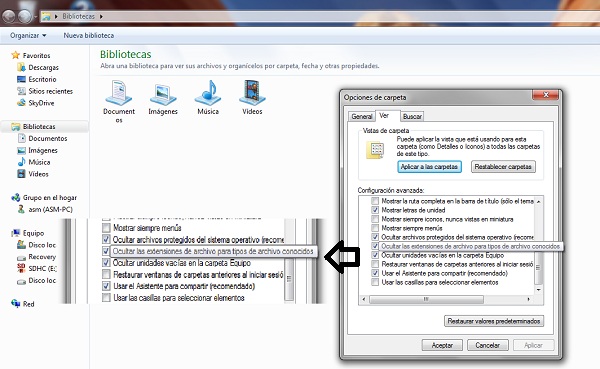
The taskbar is a very useful tool to access the programs you use and even to anchor some file that we use often, such as a text document or presentation. However, not so easy to pin a shortcut to a drive or folder. To perform this trick, the first thing to check is that when displaying filenames Windows also displays extensions thereof.

To do this, we go to Windows Explorer and click on the "Organize". Then on "Folder and Search Options" and in the list of options look for the next "Hide file extensions for known file types." Should we remove is checked.

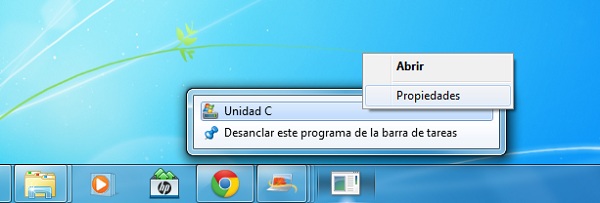
Now we can perform this trick. Anywhere on the screen we click the right mouse button, select the "New" and then "Text Document". We changed the name to one that we want, with care to always add the ". Exe" to the filename. Once done, drag the icon for this new document and had the desktop to the taskbar. The first step is to change the icon to one more attractive than the one in the picture. To do this, we press the right mouse button on the icon, then again right click the file name and properties (appear similar to the image).

In the Shortcut tab click on "Change Icon" and choose the desired image. After twice and accept if the step has run see how you change the icon. Now we return to do the same steps to get to the properties and the shortcut tab change the addresses of "Target" and "Start in" with the letter of the drive or folder path followed by a colon and the bar side. Like, for example, "C: \" or "C: \ My Documents". Then we can delete the file we created on the desktop, and we will have our unit anchored to the taskbar.

2. Discover the secrets of the calculator

Explora la calculadora en Windows 7

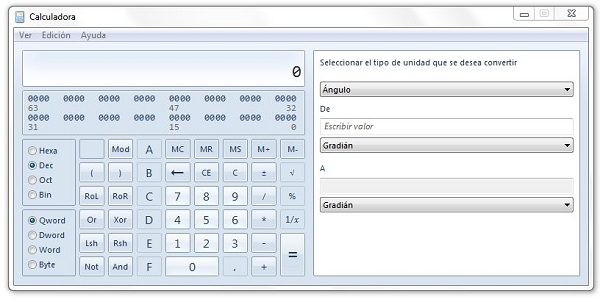
At first glance it may seem that Microsoft has repeated the calculator functions available to it Windows Vista. However, behind the design of the basic view of this tool are hidden advanced multiple views including interesting features. If you click on "View", we can set the desired view. On the left the view of the calculator "traditional" (which may be basic, scientific, programmer and statistics) and to the right a view of unit conversion, date calculations and spreadsheets among which includes a mortgage calculator.

In short, a set of functions that go beyond what is expected of a traditional calculator and waiting to be discovered.

3. Photos rotate on desktop

Presentación de imágenes en el escritorio

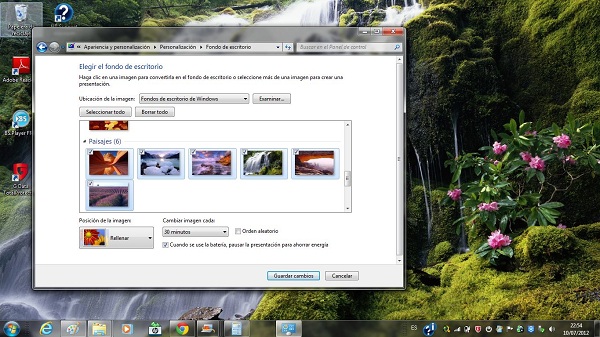
Windows 7 has built a series of background images that the company has grouped by themes such as landscapes or architecture. These images are designed to fit the right way to our screen resolution, and the process of establishing one of these pictures as wallpaper is easy. But after a while can become tedious seeing the same background. To prevent this from happening, Windows 7 introduces the ability to customize a slideshow.

To do this, we click on the button right on the desktop, then "customize" and click on the option to "wallpaper" on the bottom. We can choose different image collections default Windows 7 (if you click on the name is automatically selected all the images in the collection). Or choose a folder with our own tightening images on "Browse". If we choose only some pictures some use the Control key and then we click on the desired images.

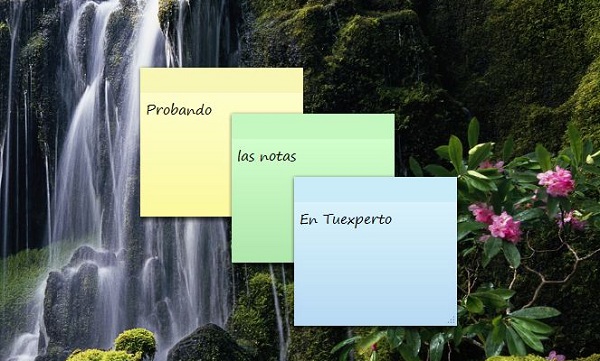
4. How to organize your notes in the form of Post-It

Notas rápidas en Windows 7

There are many occasions when it is necessary to point out some data that we want to remember or keep on hand. Typically in these cases is to use Notepad or Word itself. However, there is a simple and visual that can help in this regard. This is the application "sticky note" with which data can point several small notes in the form of Post-It.

To use this tool simply go to Start Menu "All Programs" "Accessories" Quick Notes. Simply select on the note and start typing. The color of each note changes if we click on it with the right mouse button and then the desired color. If you want to write a new note we press on cross-shaped symbol, and to remove the X. If we exit the program by right clicking the icon on the taskbar of the notes and "Close window" the notes are saved until you return to open them.

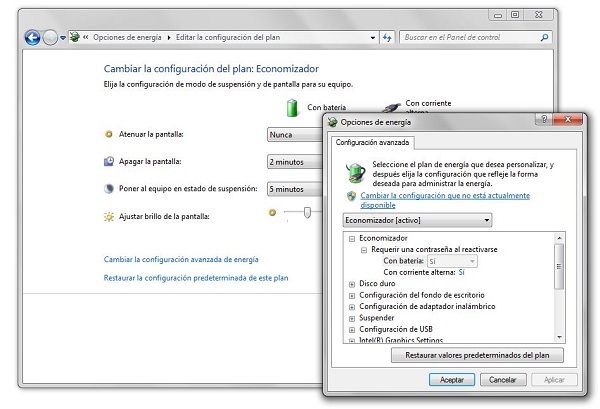
5. Extend the hours of your laptop battery

Cómo alargar la vida de tu batería

Windows 7 includes a series of advanced energy options that can help improve the life of the battery of a laptop. Default Windows offers two options: the "saver plan" and "performance plan". To change the configuration of the plans or create a new one, go to the Start menu and type "power options". We choose one of the plans (or create a new one) and then you click on "Change plan settings".

In the next window to push back on "Change advanced power settings." Through the window (shown in the picture above) we can change the way the system behaves as disk devices or ports USB, plus video presentations or desktop wallpaper. In this case, it is important not to touch values ​​that do not know well.

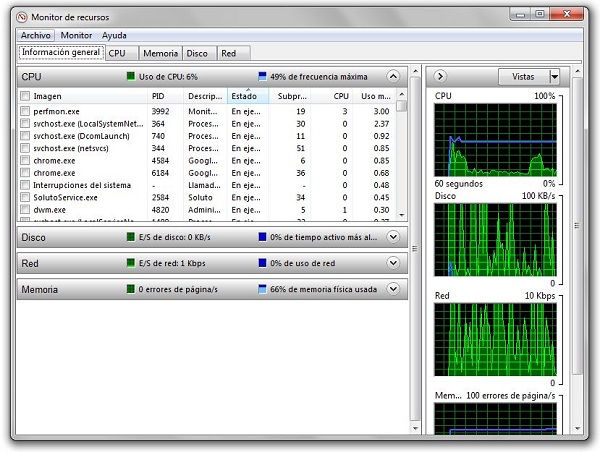
6. Discover and ends the program that chokes your computer

Monitor de recursos

Normally when searching for processes that are active and consuming more resources we use the task manager. However, Windows 7 has an application called "Resource Monitor" for managing these processes more advanced. To start go to the Windows startup and you type in the shortcut bar "resmon". Once inside, we manage various system resources and see values ​​such as CPU usage, the description of the processes or the use of the disk takes place. By pressing the right mouse button on one of the processes we can finish it or put it in suspension, in case you are consuming many computer resources.

Just do not forget that this is an advanced tool that can be dangerous and manage system processes that do not know.

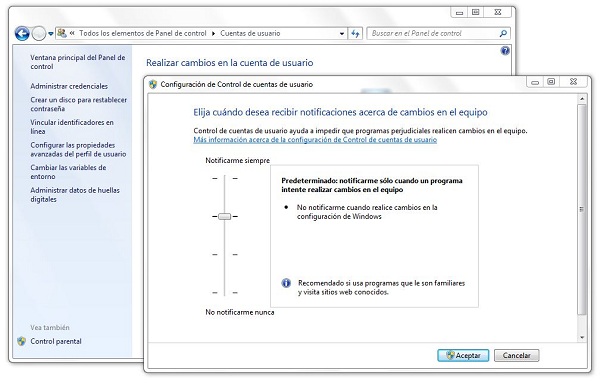
7. Tired of Windows 7 alerts?

Cómo gestionar las alertas de Windows 7

One aspect that may be heavier when working with Windows 7 are throwing alerts the system when you open a program. Fortunately, we can manage alert levels and reduce the number of these notices through the Windows control panel. To access this menu, we can do this in two ways. The fastest is to go to start menu and type in the search bar "audit". The first option that appears is the "Change Settings of User Account Control."

If we use the more traditional way, go to control panel, look through the options (we recommend using the large icon view or small) and then "User Accounts". Once inside we click on "Change Settings Control user accounts. "There are five levels, from one that does not throw ever notices (many users will be tempted to turn this level) to notify whenever a program tries to install on your computer or any change in the configuration of Windows 7.

8. Take advantage of free tools such as WordPad

Utilizar las opciones de guardado de Wordpad

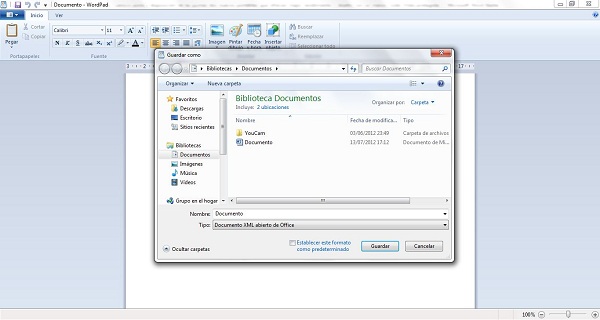
If you do not want to checkout for payment using the Office suite, there are several alternatives. One is the free tool WordPad that comes with Windows itself. It may be more than enough for current needs when open and write documents. One of the novelties of this version of Windows 7 is the ability to save documents in more formats than the typical RTF. In WordPad can open and create Office documents (in. Docx). To save files in this format, we just have to go to menu "save as" then choose "Office Open XML Document".

Incidentally, for those users who do not want to pay for Office also very useful free tools on the Internet. Microsoft itself offers Office Web Apps . And Google makes competition for some time with Google Docs . A suite that works over the Internet and increasingly incorporates more options.

9. Extends the multimedia capabilities of Windows 7

Explora las opciones multimedia

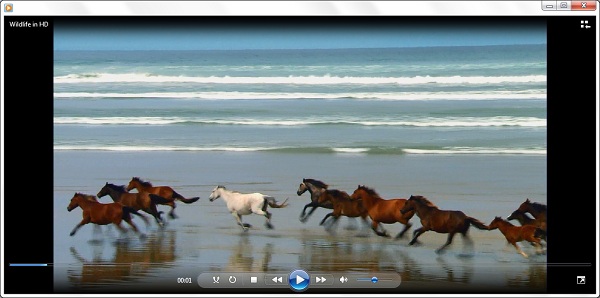
Although the version of Windows 7 includes a media player called Windows Media Player that improves the performance of previous versions, you can still have problems when playing some video or audio files. In order to improve the performance of Windows 7, the best thing to do is download a player that incorporates the necessary codecs to play most media files circulating on the Internet. Some of the recommendations that Free can offer better performance are the VLC Media Player or the K-Lite Codec Pack .

10. Enables full control mode

Modo experto

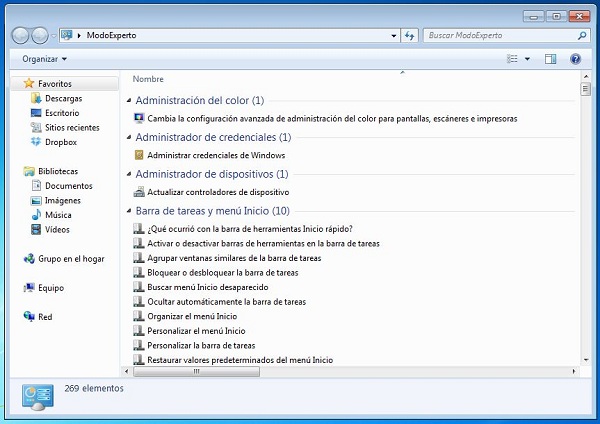
Windows 7 has a neat trick that allows you to organize all the configuration options in a single folder. The expert mode or Full Control is to create a folder in the directory you want with the following name: expert mode. {-8E54-465E ED7BA470-825C-99712043E01C}. In fact, the "expert mode" principle can be changed by any desired name, provided that mantegamos the second part of the name with the whole string of numbers and letters.

Then we can anchor this folder to the Start menu by simply dragging the folder icon and place it on the Windows Start button. Through this folder you can access all configuration options of Windows 7, which is organized through a list. Of course, we must take into account that change some Windows settings without knowing them can be dangerous.

If you want to support our job please visit our links, we have a lot of offers for you, if not you can also visit our top 10

Windows 8 hacked Safe Boot

Windows 8 hacked Safe Boot.
http://www.todaynewtechnology.com/wp-content/uploads/2011/10/windows8.jpegNothing is foolproof, much less when in a hyper-alpha version and show the world is a viral marketing ploy than a demonstration of the work constructed. 

But that's business, and Microsoft was quite sure what made ​​available to users by presenting the foundations of what will be safe boot your system, it did not expect was to meet with a story about that hack Windows 8. Is that the other side are security experts who move in the shadows, testing the shields, and in the case of Windows 8 and Safe Boot, these failed to prevent an exploit of only 14 kb was inserted into the MBR and give root access to the system.

Everything is ready to step in swiftly so that when carrying out the Security Conference in Mumbai Malcolm, nothing-beyond computers and display systems set up for this very reason, fail. 

For this conference that are high expectations to see what kind of advances and retreats has shown the computer security industry, attention is currently a researcher at the Austrian, who has become quite nervous about Microsoft engineers in the first instance when his creation did take it home safe insurance acclaimed Windows 8.

    The question is: Peter Kleissner is a developer and independent security analyst who has dedicated years to create exploits in bringing to light the vulnerabilities of each system it touches. To attend and get their hands on Windows 8 , Kleissner not think twice and jumped headlong into the MBR and the BIOS, trying them out on the best defense against an exploit of 14 kb that acts directly on the MBR, loaded from it resides in memory until you finish the boot process of Windows 8 and hacking the system and providing access to it.
El bootkit no respeta nada de esto y se hace con el acceso al root. - Hackean Windows 8 y su inicio seguro
The bootkit not respect any of this and be done with root access.
 Without there being any kind of information in the middle but a Twitter message Kleissner the bootkit the called Stoned Lite has good intentions, and that is why he has shared with Microsoft , along with all documentation relevant to their development and possible solutions, so that Redmond will make your changes to Windows 8 so that this condition can be overcome. 

To this will have to review the insurance system startup with UEFI, which is now free community resistance in the amount of difficulties that would arise when installing operating systems were not considered reliable Windows certification.

    There is less than an outside investigator account of an error in one of the biggest prides of Windows 8, so that the system that Microsoft has dubbed Malware killer due to the power of their efforts to prevent hacks from booting must now review their policies and act on quickly. 

By the way, still trying Kleissner would leave their country to Mumbai to explain how he hacked Windows 8, but a delay in the granting of your visa is complicating the matter. It seems that Kleissner has unfinished business with the Austrian justice for violating anti-piracy treaty.

Tutorial como instalar WINDOWS 8 facil y rapido

Tutorial como instalar WINDOWS 8 facil y rapido.

Ansiosos por probar Windows 8? Pero no quieren instalarlo como un sistema operativo en sus PCs? (aunque es posible instalarlo en otra partición) La solución actual, es instalarlo en una máquina virtual. Y VirtualBox, una herramienta de Virtualización gratuita, funciona perfecto.
Virtualización?
La Virtualización es el proceso de correr un sistema operativo encima de nuestro sistema operativo actual, sea Linux, Windows, u OS X. Por supuesto, consumirá más recursos (estamos corriendo dos sistemas operativos simultáneamente) pero es una excelente manera de probar software o, como en este caso, todo un sistema operativo completo, sin tener que estar lidiando con modificaciones permanentes a nuestro sistema.
Screen Shot 2011 09 14 at 3 07 16 PM
Screen Shot 2011 09 14 at 3 20 32 PM

Antes de proceder, asegúrense de tener una computadora veloz (Core 2 Duo en adelante), bastante RAM disponible (basta con 2, pero es recomendable 4 GBs), y alrededor de 20 GBs de espacio libre en el disco duro.

Qué se necesita?

VirtualBox
La imagen de Windows 8 (descargar el ISO de 32 o 64 bits)


Una vez descargado tanto el programa, como el ISO de Windows 8, tenemos que instalar y ejecutar Virtualbox. Apenas lo vean aparecer, denle click a “New”, para crear una máquina virtual nueva.
Se nos preguntará por un nombre, además de qué instalación se trata. Utilicen los valores que ven en la imagen (El nombre pueden modificarlo a a lo que deseen, pero es recomendable dejarlo como “Other Windows). Click en Siguiente
Screen Shot 2011 09 14 at 3 01 40 PM

Ahora, tenemos que “donarle” a la máquina virtual 1 GB de RAM. No se preocupen, este gigabyte quedará ocupado sólo cuando utilicen la máquina virtual, así que como valor, ponemos 1024.
Screen Shot 2011 09 14 at 3 01 52 PM
En la siguientes pantallas, dejamos las opciones por defecto. Terminando el proceso, terminaremos con algo como esto:
Screen Shot 2011 09 14 at 3 02 34 PM
Ahora vamos a Settings. Dentro, bajo “System”, asegúrense que Enable IO APIC esté habilitado:
2011 09 14 15 03 18
Luego vamos a Display, y le damos 128 MBs de RAM a la tarjeta de video para mejorar el rendimiento de la máquina virtual.
2011 09 14 15 03 44

Bajo “Storage”, asegúrense de que el disco llamado “Win8.vdi” (o el nombre que le hayan puesto) se encuentre como controlador IDE, no SATA. Esto es importante, pues de lo contrario, sólo veremos una pantalla azul sin posibilidad de continuar.
2011 09 14 15 04 17

Por último, también bajo Storage, en el ícono de CD, cambiamos el CD / DVD Drive por el ISO que descargamos, de la siguiente manera: elegimos “Choose a virtual CD / DVD disk file…”, y seleccionamos el ISO descargado. Click en OK.


2011 09 14 15 05 00


De regreso a la interfaz final, le damos click a Start y listo! La instalación de Windows 8 se iniciará. Sorprendentemente, sólo tardará unos 10 – 15 minutos (contra los 35-50 que tarda Windows 7). Y esto, dentro de una máquina virtual. La experiencia será algo limitada comparándola con una instalación nativa (no puedo instalar todavía los “Guest Additions” o drivers de la máquina virtual, por ejemplo), pero es una manera bastante rápida de darle un vistazo fugaz al OS.


Screen Shot 2011 09 14 at 3 20 32 PM
Screen Shot 2011 09 14 at 3 21 30 PM

Mac OS Lion, el nuevo OS de Apple, todo lo que debes saber

Mac OS Lion, el nuevo OS de Apple, todo lo que debes saber

Ya ha adelantado Steve Jobs al inicio de la WWDC o Conferencia de Desarrolladores, que se está celebrando en San Francisco (California), que hoy se hablaría de software y no sobre iPhone. Esto excluye por tanto, cualquier información relacionada con el iPhone 5 y con la supuesta presentación del nuevo smartphone de Apple. Descartada esta cuestión, hay que prestar atención a todos los datos que hoy mismo se están dando a conocer acerca de la nueva edición de OS X, el sistema operativo de Apple para Mac, bautizada con el nombre de Lion. En este sentido, Jobs y Schiller (vicepresidente de producto de la compañía) ya han anunciado que la nueva edición de Lion incorpora la friolera de 250 características nuevas. Te lo contamos todo después del salto.

lion_11

lion_22

Ya sabes que el lanzamiento de Lion OS X era una de las novedades más esperadas por parte de la audiencia de Apple, que no es poca. En estos momentos, se sabe que Apple ha vendido 54 millones de macs en todo el mundo, una cifra que sigue subiendo, con una marcada predilección por los dispositivos portátiles. De hecho, según Schiller, tres cuartas partes de los macs comercializados corresponden a este segmento. El caso es que el nuevo sistema operativo Lion OS X estará disponible para toda la comunidad de Apple a partir del próximo mes de julio, con una gran cantidad de mejoras a cuestas. Una de las más importantes es la integración de la tienda de aplicaciones para Mac en la propia plataforma.

lion_33

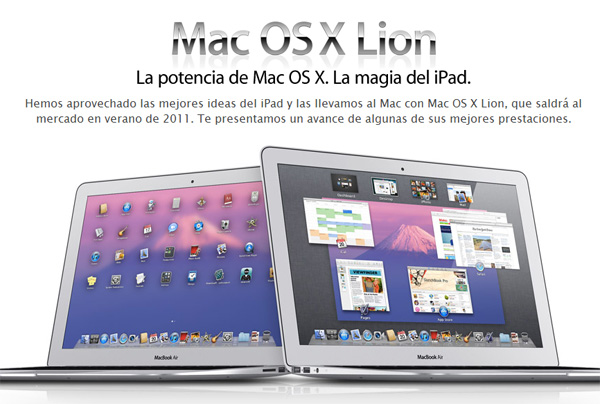
Pero hay más. Y es que los usuarios podrán trabajar en sus dispositivos con gestos multi-táctiles, lo que significa que tendrán la oportunidad de arrastrar y soltar archivos sobre la superficie touch-pad del sistema, además de hacer zoom, rebotes y deslizamientos de un modo más fluido. Es así como Apple se ha visto obligada a incorporar nuevas funciones que permitan a los usuarios aprovechar este nuevo sistema. Esto incluye Fullscreen aplications o Apps a pantalla completa, la posibilidad de ejecutar y visualizar programas aprovechando toda la pantalla; pero también Mission Control, función que nos permitirá mover y gestionar archivos y programas a través de una nueva interfaz, con una visión general de todo lo que está ocurriendo en tu Mac.

Apple también ha incorporado al sistema la función Launchpad (acceso directo e inmediato a todas las aplicaciones instaladas); Autoguardar (guardado automático sin que tengas que hacer clic a ‘Guardar’ manualmente); Versiones (la posibilidad de guardar todas las versiones de la evolución del documento); Reanudar (retomar el trabajo tal y como lo dejaste) o AirDrop (la posibilidad de enviar archivos de forma inalámbrica). Los chicos de Apple también han aprovechado para mejorar la herramienta del correo electrónico, Mail 5, ofreciendo una forma más fácil y eficaz de visualizar nuestra bandeja de entrada y el centro de nuestras comunicaciones.

Lo mejor de todo es que la nueva edición de Lion OS X puede ser actualizada a través de la tienda de aplicaciones de Apple. Como te decíamos al principio, la versión, que por cierto pesa 4GB, se pondrá a la venta a partir del próximo mes de julio (bajo descarga) por 30 dólares, lo que serían unos 21 euros al cambio actual.

Related Posts Plugin for WordPress, Blogger...

Special Offer for Readers